> ## Documentation Index
> Fetch the complete documentation index at: https://docs-staging-feat-init-gt-translations.mintlify.site/llms.txt
> Use this file to discover all available pages before exploring further.

> Forms for Actions を使用して、ユーザーが新しい利用規約または同意に関する更新内容を確認して承諾できるように、更新ポリシーフォームを設定する方法を学びます。

# ユースケース: Forms を使用して更新ポリシーフォームを設定する

<Card title="始める前に">
  1. 次のスコープを有効にして、[Machine-to-Machine Application](/docs/ja-jp/get-started/auth0-overview/create-applications/machine-to-machine-apps) を作成します。

  * `read:users`
  * `update:users`
  * `create:users`
  * `read:users_app_metadata`
  * `update:users_app_metadata`
  * `create:users_app_metadata`

  2. M2M アプリケーションの認証情報を使用して、[Vault 接続](/docs/ja-jp/customize/forms/vault) を追加します。
</Card>

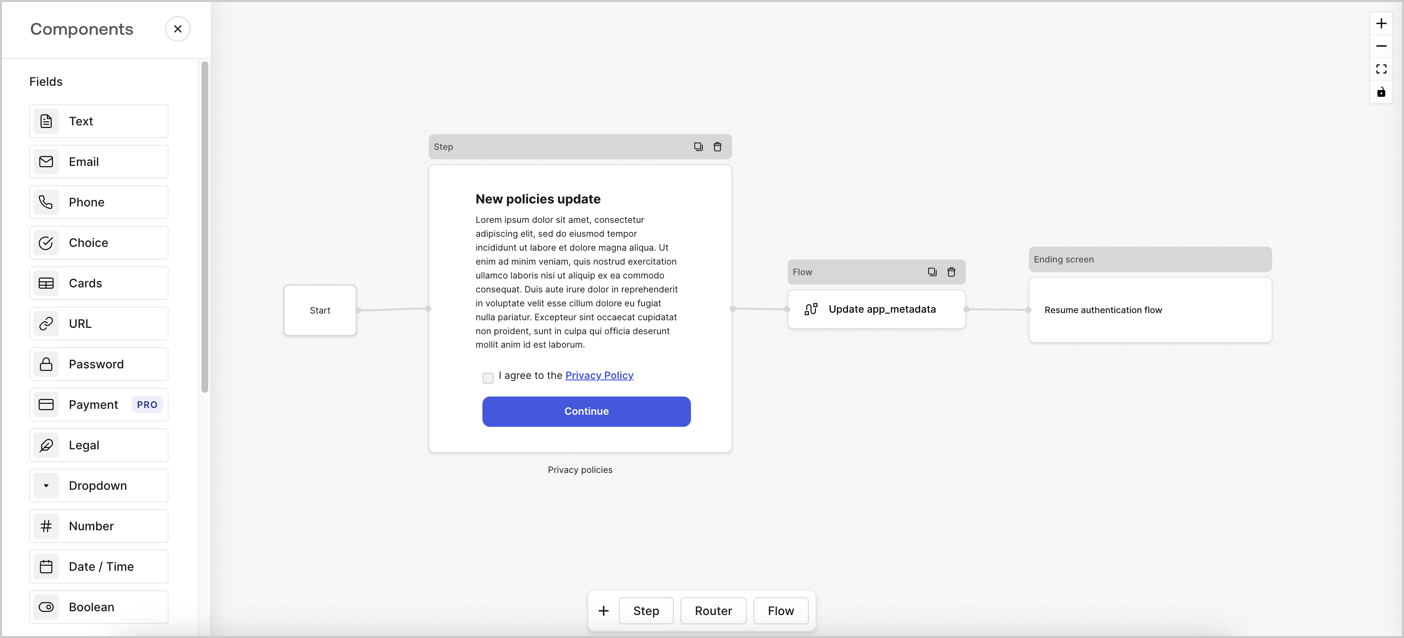
Forms for Actions では、カスタムのプライバシーポリシーフローを作成し、その同意内容を `app_metadata` オブジェクトに保存できます。
<Frame>
  <img src="https://mintcdn.com/docs-staging-feat-init-gt-translations/Z7xMzrN9GfTmJzgq/docs/images/cdy7uua7fh8z/6i68dMvHDTijfRmSgN1x8Q/ad900e7d4c0fb34645921435472b8684/privavy-policy-form.png?fit=max&auto=format&n=Z7xMzrN9GfTmJzgq&q=85&s=aaab67fba47d3777af68976a6b2f9477" alt="Dashboard > Actions > Forms > Privacy policy use case" data-og-width="1404" width="1404" data-og-height="638" height="638" data-path="docs/images/cdy7uua7fh8z/6i68dMvHDTijfRmSgN1x8Q/ad900e7d4c0fb34645921435472b8684/privavy-policy-form.png" data-optimize="true" data-opv="3" srcset="https://mintcdn.com/docs-staging-feat-init-gt-translations/Z7xMzrN9GfTmJzgq/docs/images/cdy7uua7fh8z/6i68dMvHDTijfRmSgN1x8Q/ad900e7d4c0fb34645921435472b8684/privavy-policy-form.png?w=280&fit=max&auto=format&n=Z7xMzrN9GfTmJzgq&q=85&s=73107341375a0f95beee6633c81d9287 280w, https://mintcdn.com/docs-staging-feat-init-gt-translations/Z7xMzrN9GfTmJzgq/docs/images/cdy7uua7fh8z/6i68dMvHDTijfRmSgN1x8Q/ad900e7d4c0fb34645921435472b8684/privavy-policy-form.png?w=560&fit=max&auto=format&n=Z7xMzrN9GfTmJzgq&q=85&s=a52e7aad110b7b1d0cded9e6b5a6912a 560w, https://mintcdn.com/docs-staging-feat-init-gt-translations/Z7xMzrN9GfTmJzgq/docs/images/cdy7uua7fh8z/6i68dMvHDTijfRmSgN1x8Q/ad900e7d4c0fb34645921435472b8684/privavy-policy-form.png?w=840&fit=max&auto=format&n=Z7xMzrN9GfTmJzgq&q=85&s=c6875201ae3d93aaecf7e5211dec350e 840w, https://mintcdn.com/docs-staging-feat-init-gt-translations/Z7xMzrN9GfTmJzgq/docs/images/cdy7uua7fh8z/6i68dMvHDTijfRmSgN1x8Q/ad900e7d4c0fb34645921435472b8684/privavy-policy-form.png?w=1100&fit=max&auto=format&n=Z7xMzrN9GfTmJzgq&q=85&s=e23dd47765eb8c8a1414002aa7b19dcc 1100w, https://mintcdn.com/docs-staging-feat-init-gt-translations/Z7xMzrN9GfTmJzgq/docs/images/cdy7uua7fh8z/6i68dMvHDTijfRmSgN1x8Q/ad900e7d4c0fb34645921435472b8684/privavy-policy-form.png?w=1650&fit=max&auto=format&n=Z7xMzrN9GfTmJzgq&q=85&s=c43c329fb0d31c4bd5bfd40a51382e94 1650w, https://mintcdn.com/docs-staging-feat-init-gt-translations/Z7xMzrN9GfTmJzgq/docs/images/cdy7uua7fh8z/6i68dMvHDTijfRmSgN1x8Q/ad900e7d4c0fb34645921435472b8684/privavy-policy-form.png?w=2500&fit=max&auto=format&n=Z7xMzrN9GfTmJzgq&q=85&s=b7293cf4cb33559d40f1a3e4dbc4179e 2500w" />
</Frame>

以下のセクションでは、ノードとフローを使用して更新ポリシーフォームを作成する方法と、そのフォームを [Post Login](/docs/ja-jp/customize/actions/explore-triggers/signup-and-login-triggers/login-trigger) Action に追加する手順について説明します。

<h2 id="create-a-form-from-scratch">
  フォームを一から作成する
</h2>

情報を収集するためのフォームを作成するには、次の手順に従います。

1. **Auth0 Dashboard > Actions > Forms** を選択して、フォームエディターを開きます。
2. **Create Form** > **Start from scratch** を選択します。

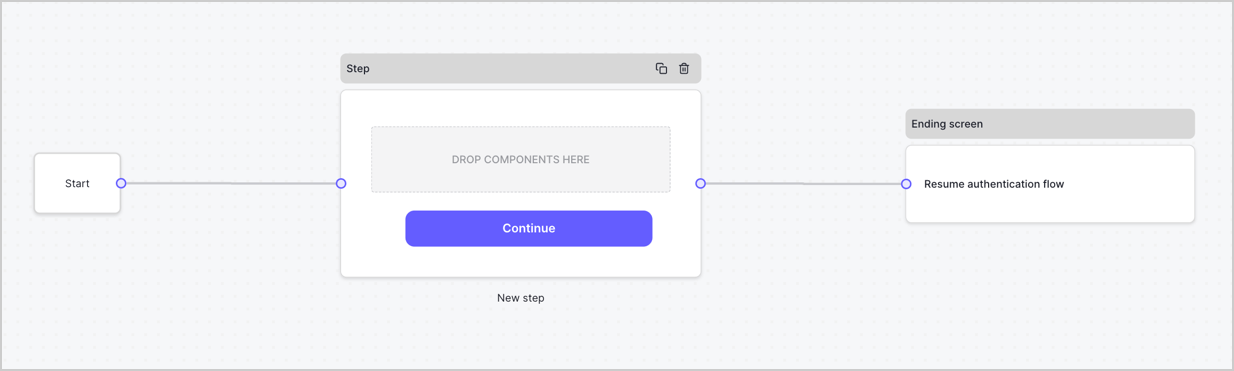
デフォルトでは、新しいフォームには Start ノード、Step ノード、Ending screen ノードが含まれています。
<Frame>
  <img src="https://mintcdn.com/docs-staging-feat-init-gt-translations/sDOAAkLQ2_fRrOaM/docs/images/cdy7uua7fh8z/2TZ9jSjgEcARFpULI6hz4R/a4319a1bd482f2ee5cc23100fdb2f42c/New-form-Forms-for-action-use-case.png?fit=max&auto=format&n=sDOAAkLQ2_fRrOaM&q=85&s=dbdf9fe01b77a17c4a41091d9a1e9bf9" alt="Dashboard > Forms > Use Cases > Form" data-og-width="1234" width="1234" data-og-height="371" height="371" data-path="docs/images/cdy7uua7fh8z/2TZ9jSjgEcARFpULI6hz4R/a4319a1bd482f2ee5cc23100fdb2f42c/New-form-Forms-for-action-use-case.png" data-optimize="true" data-opv="3" srcset="https://mintcdn.com/docs-staging-feat-init-gt-translations/sDOAAkLQ2_fRrOaM/docs/images/cdy7uua7fh8z/2TZ9jSjgEcARFpULI6hz4R/a4319a1bd482f2ee5cc23100fdb2f42c/New-form-Forms-for-action-use-case.png?w=280&fit=max&auto=format&n=sDOAAkLQ2_fRrOaM&q=85&s=62eec74794ae922f10e5c777988772b6 280w, https://mintcdn.com/docs-staging-feat-init-gt-translations/sDOAAkLQ2_fRrOaM/docs/images/cdy7uua7fh8z/2TZ9jSjgEcARFpULI6hz4R/a4319a1bd482f2ee5cc23100fdb2f42c/New-form-Forms-for-action-use-case.png?w=560&fit=max&auto=format&n=sDOAAkLQ2_fRrOaM&q=85&s=68dcc7d6f276068053f60666f49abb9f 560w, https://mintcdn.com/docs-staging-feat-init-gt-translations/sDOAAkLQ2_fRrOaM/docs/images/cdy7uua7fh8z/2TZ9jSjgEcARFpULI6hz4R/a4319a1bd482f2ee5cc23100fdb2f42c/New-form-Forms-for-action-use-case.png?w=840&fit=max&auto=format&n=sDOAAkLQ2_fRrOaM&q=85&s=df73f08c1ebc95993afa4756471e56fb 840w, https://mintcdn.com/docs-staging-feat-init-gt-translations/sDOAAkLQ2_fRrOaM/docs/images/cdy7uua7fh8z/2TZ9jSjgEcARFpULI6hz4R/a4319a1bd482f2ee5cc23100fdb2f42c/New-form-Forms-for-action-use-case.png?w=1100&fit=max&auto=format&n=sDOAAkLQ2_fRrOaM&q=85&s=06032f1daf7e80bfa3481a75d497808f 1100w, https://mintcdn.com/docs-staging-feat-init-gt-translations/sDOAAkLQ2_fRrOaM/docs/images/cdy7uua7fh8z/2TZ9jSjgEcARFpULI6hz4R/a4319a1bd482f2ee5cc23100fdb2f42c/New-form-Forms-for-action-use-case.png?w=1650&fit=max&auto=format&n=sDOAAkLQ2_fRrOaM&q=85&s=b768249523c94674a85404117342d9d9 1650w, https://mintcdn.com/docs-staging-feat-init-gt-translations/sDOAAkLQ2_fRrOaM/docs/images/cdy7uua7fh8z/2TZ9jSjgEcARFpULI6hz4R/a4319a1bd482f2ee5cc23100fdb2f42c/New-form-Forms-for-action-use-case.png?w=2500&fit=max&auto=format&n=sDOAAkLQ2_fRrOaM&q=85&s=4337a2b799ee0f628f9990752ecd5948 2500w" />
</Frame>

<h3 id="configure-the-step-node">
  Step ノードを設定する
</h3>

Step ノードは、ユーザーに表示されるグラフィカルインターフェースです。次の手順で、新しい同意の承諾値を収集するための [Fields](/docs/ja-jp/customize/forms/nodes-and-components) を Step ノードに追加します。

1. **Components menu** から **Rich text** フィールドを **Step** ノードにドラッグします。

   * **Rich text**: プライバシーポリシーの更新内容に関する説明を入力します。
   * **Save** を選択します。
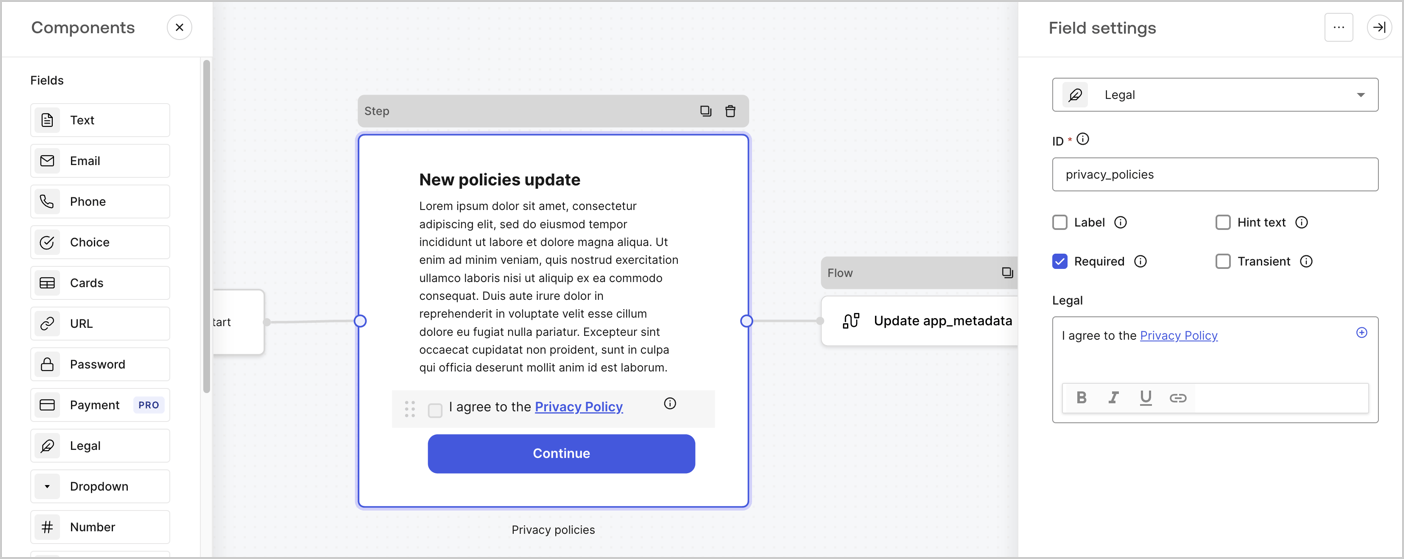
2. **Legal** フィールドを **Step** ノードにドラッグします。

   * **ID**: `privacy_policies` と入力します。
   * **Required**: チェックボックスをオンにします。
   * **Legal**: `I agree to the Privacy Policy` と入力します。
   * **Save** を選択します。
3. 保存するには **Publish** を選択します。
<Frame>
  <img src="https://mintcdn.com/docs-staging-feat-init-gt-translations/OTmOpUeX_UZGyUmI/docs/images/cdy7uua7fh8z/59zFFjQjAnjogkc2QGIqqJ/0ad66b1b636544122aa4e65968b76c2c/privacy-policy-step-node.png?fit=max&auto=format&n=OTmOpUeX_UZGyUmI&q=85&s=946d16005903908b2339fbade25a6736" alt="Dashboard > Actions > Forms > プライバシーポリシーのユースケースの Step ノード" data-og-width="1404" width="1404" data-og-height="559" height="559" data-path="docs/images/cdy7uua7fh8z/59zFFjQjAnjogkc2QGIqqJ/0ad66b1b636544122aa4e65968b76c2c/privacy-policy-step-node.png" data-optimize="true" data-opv="3" srcset="https://mintcdn.com/docs-staging-feat-init-gt-translations/OTmOpUeX_UZGyUmI/docs/images/cdy7uua7fh8z/59zFFjQjAnjogkc2QGIqqJ/0ad66b1b636544122aa4e65968b76c2c/privacy-policy-step-node.png?w=280&fit=max&auto=format&n=OTmOpUeX_UZGyUmI&q=85&s=e0cf74eb0a9f9a88d6501e338ecfaf0e 280w, https://mintcdn.com/docs-staging-feat-init-gt-translations/OTmOpUeX_UZGyUmI/docs/images/cdy7uua7fh8z/59zFFjQjAnjogkc2QGIqqJ/0ad66b1b636544122aa4e65968b76c2c/privacy-policy-step-node.png?w=560&fit=max&auto=format&n=OTmOpUeX_UZGyUmI&q=85&s=4fe2e60b75b710c31f684ff898a181ef 560w, https://mintcdn.com/docs-staging-feat-init-gt-translations/OTmOpUeX_UZGyUmI/docs/images/cdy7uua7fh8z/59zFFjQjAnjogkc2QGIqqJ/0ad66b1b636544122aa4e65968b76c2c/privacy-policy-step-node.png?w=840&fit=max&auto=format&n=OTmOpUeX_UZGyUmI&q=85&s=2c5ccb1358e027fa79c4d1086050ae6a 840w, https://mintcdn.com/docs-staging-feat-init-gt-translations/OTmOpUeX_UZGyUmI/docs/images/cdy7uua7fh8z/59zFFjQjAnjogkc2QGIqqJ/0ad66b1b636544122aa4e65968b76c2c/privacy-policy-step-node.png?w=1100&fit=max&auto=format&n=OTmOpUeX_UZGyUmI&q=85&s=89685cbaa611b13554f7badbddc15a9d 1100w, https://mintcdn.com/docs-staging-feat-init-gt-translations/OTmOpUeX_UZGyUmI/docs/images/cdy7uua7fh8z/59zFFjQjAnjogkc2QGIqqJ/0ad66b1b636544122aa4e65968b76c2c/privacy-policy-step-node.png?w=1650&fit=max&auto=format&n=OTmOpUeX_UZGyUmI&q=85&s=57793bb9403a51118455de09705dc26c 1650w, https://mintcdn.com/docs-staging-feat-init-gt-translations/OTmOpUeX_UZGyUmI/docs/images/cdy7uua7fh8z/59zFFjQjAnjogkc2QGIqqJ/0ad66b1b636544122aa4e65968b76c2c/privacy-policy-step-node.png?w=2500&fit=max&auto=format&n=OTmOpUeX_UZGyUmI&q=85&s=19c028bf9b800dbd5c355493b4c3cbf7 2500w" />
</Frame>

<h3 id="configure-the-flow-node">
  Flow ノードを設定する
</h3>

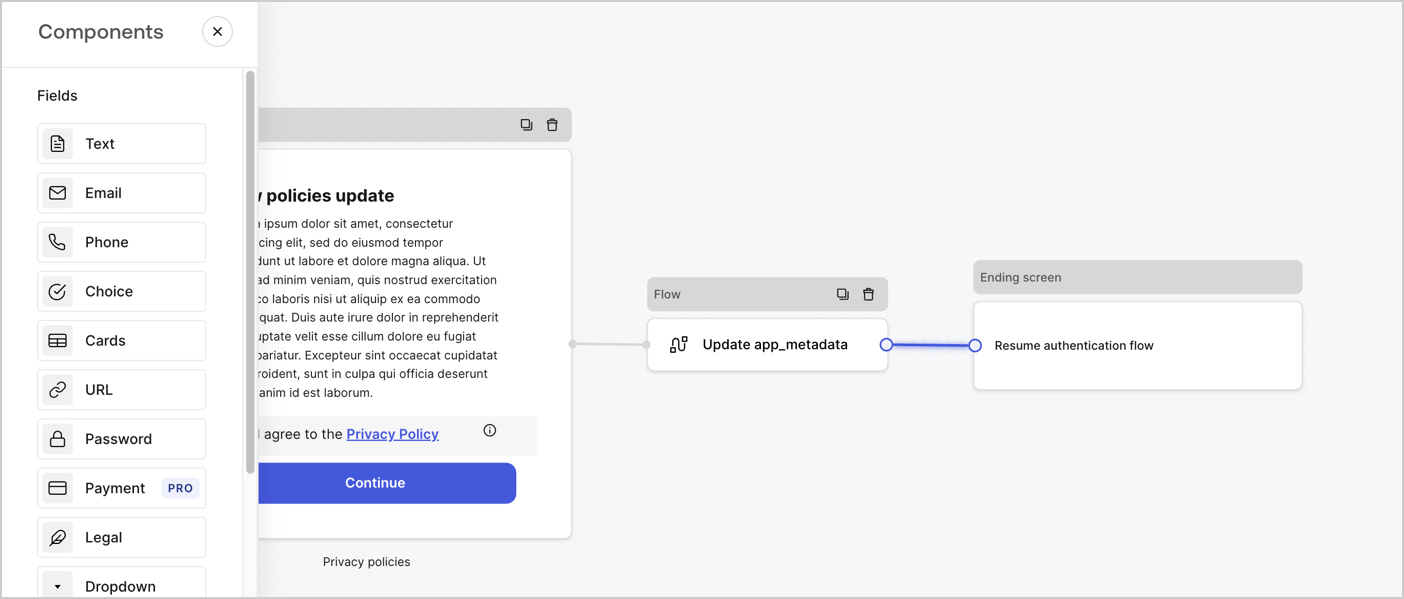
次の手順に従って、**Step** ノードの後に **Flow** ノードを追加し、`app_metadata` を更新して認証フローを再開します。

1. フォームエディターの下部で **Flow** を選択します。
2. **Step** ノードと **Ending Screen** ノードの間にある既存のリンクを削除します。
3. 新しい **Flow** > **Click to add a flow** > **Create a new flow.** を選択します。

   * **Name** フィールドに `Update app_metadata` と入力します。
   * **Create** を選択します。
   * **Save** を選択します。
4. 下図のように、**Flow** ノードを **Step** ノードと **Ending Screen** ノードにリンクします。
5. 保存するには **Publish** を選択します。
<Frame>
  <img src="https://mintcdn.com/docs-staging-feat-init-gt-translations/Z7xMzrN9GfTmJzgq/docs/images/cdy7uua7fh8z/6YIkzm7SrpM9LW76AXuRzh/353c518fe82bbaa440836da1d83596d6/link-policies.png?fit=max&auto=format&n=Z7xMzrN9GfTmJzgq&q=85&s=c363f2dc295c1efbe88d7832573b0d6d" alt="Dashboard > Actions > Forms > Form" data-og-width="1404" width="1404" data-og-height="599" height="599" data-path="docs/images/cdy7uua7fh8z/6YIkzm7SrpM9LW76AXuRzh/353c518fe82bbaa440836da1d83596d6/link-policies.png" data-optimize="true" data-opv="3" srcset="https://mintcdn.com/docs-staging-feat-init-gt-translations/Z7xMzrN9GfTmJzgq/docs/images/cdy7uua7fh8z/6YIkzm7SrpM9LW76AXuRzh/353c518fe82bbaa440836da1d83596d6/link-policies.png?w=280&fit=max&auto=format&n=Z7xMzrN9GfTmJzgq&q=85&s=f813089ed00b79e389ff2add7650b800 280w, https://mintcdn.com/docs-staging-feat-init-gt-translations/Z7xMzrN9GfTmJzgq/docs/images/cdy7uua7fh8z/6YIkzm7SrpM9LW76AXuRzh/353c518fe82bbaa440836da1d83596d6/link-policies.png?w=560&fit=max&auto=format&n=Z7xMzrN9GfTmJzgq&q=85&s=48b167a607631e3cb63cbb4a6ea7b6e1 560w, https://mintcdn.com/docs-staging-feat-init-gt-translations/Z7xMzrN9GfTmJzgq/docs/images/cdy7uua7fh8z/6YIkzm7SrpM9LW76AXuRzh/353c518fe82bbaa440836da1d83596d6/link-policies.png?w=840&fit=max&auto=format&n=Z7xMzrN9GfTmJzgq&q=85&s=a7847fd10c9464377927cb861e7cb526 840w, https://mintcdn.com/docs-staging-feat-init-gt-translations/Z7xMzrN9GfTmJzgq/docs/images/cdy7uua7fh8z/6YIkzm7SrpM9LW76AXuRzh/353c518fe82bbaa440836da1d83596d6/link-policies.png?w=1100&fit=max&auto=format&n=Z7xMzrN9GfTmJzgq&q=85&s=9ee713484b2d9f5d527e95b1678ecade 1100w, https://mintcdn.com/docs-staging-feat-init-gt-translations/Z7xMzrN9GfTmJzgq/docs/images/cdy7uua7fh8z/6YIkzm7SrpM9LW76AXuRzh/353c518fe82bbaa440836da1d83596d6/link-policies.png?w=1650&fit=max&auto=format&n=Z7xMzrN9GfTmJzgq&q=85&s=11bdfe5191aac125c093281527a7ef93 1650w, https://mintcdn.com/docs-staging-feat-init-gt-translations/Z7xMzrN9GfTmJzgq/docs/images/cdy7uua7fh8z/6YIkzm7SrpM9LW76AXuRzh/353c518fe82bbaa440836da1d83596d6/link-policies.png?w=2500&fit=max&auto=format&n=Z7xMzrN9GfTmJzgq&q=85&s=af1d3392ce8583b46926d87517ed0f92 2500w" />
</Frame>

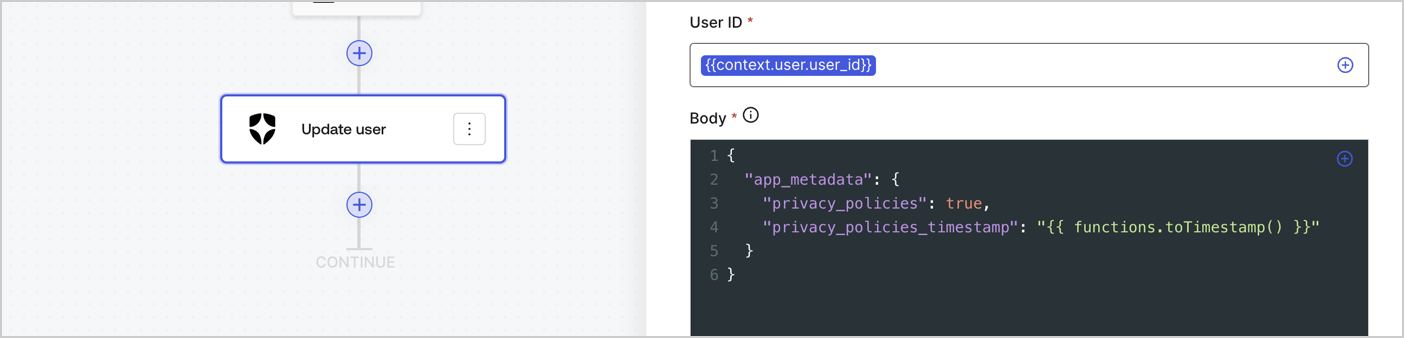
次の手順に従って、フローに Auth0 の Update user アクションを追加します。

1. **Flow** **Update app\_metadata** > **Edit flow** を選択し、新しいタブで Flow エディターを開きます。
2. StartAction の下にある **+** アイコンを選択して **Update user** アクションを追加します。以下のフィールドに入力し、**Save** を選択して続行します。

   * **Connection**: ドロップダウンから、M2M アプリケーション用の Vault 接続を選択します。

   * **User ID**: `{{context.user.user_id}}` と入力します。

   * **Body**: 次のコードをコピー＆ペーストして、privacy\_policies プロパティと privacy\_policies\_timestamp プロパティで app\_metadata を更新します。

     ```text lines theme={null}
     {
       "app_metadata": {
         "privacy_policies": true,
         "privacy_policies_timestamp": "{{ functions.toTimestamp() }}"
       }
     }
     ```

   * **Save** を選択します。
3. 保存するには **Publish** を選択します。
<Frame>
  <img src="https://mintcdn.com/docs-staging-feat-init-gt-translations/lFCCXa5dVspGIuTF/docs/images/cdy7uua7fh8z/CvMNIwWrOUwaFW4X3G28p/1fb70ae57a20749d9ffaaba8dc0b7e26/update-user-privacy.png?fit=max&auto=format&n=lFCCXa5dVspGIuTF&q=85&s=62a86412540136e9150b8156cc42c10c" alt="Dashboard > Actions > Forms > User case privacy policy code" data-og-width="1404" width="1404" data-og-height="338" height="338" data-path="docs/images/cdy7uua7fh8z/CvMNIwWrOUwaFW4X3G28p/1fb70ae57a20749d9ffaaba8dc0b7e26/update-user-privacy.png" data-optimize="true" data-opv="3" srcset="https://mintcdn.com/docs-staging-feat-init-gt-translations/lFCCXa5dVspGIuTF/docs/images/cdy7uua7fh8z/CvMNIwWrOUwaFW4X3G28p/1fb70ae57a20749d9ffaaba8dc0b7e26/update-user-privacy.png?w=280&fit=max&auto=format&n=lFCCXa5dVspGIuTF&q=85&s=17c0f8847fbb11c6bc63e5f5d88603f6 280w, https://mintcdn.com/docs-staging-feat-init-gt-translations/lFCCXa5dVspGIuTF/docs/images/cdy7uua7fh8z/CvMNIwWrOUwaFW4X3G28p/1fb70ae57a20749d9ffaaba8dc0b7e26/update-user-privacy.png?w=560&fit=max&auto=format&n=lFCCXa5dVspGIuTF&q=85&s=d158f923f3e80a55e4da888994725b93 560w, https://mintcdn.com/docs-staging-feat-init-gt-translations/lFCCXa5dVspGIuTF/docs/images/cdy7uua7fh8z/CvMNIwWrOUwaFW4X3G28p/1fb70ae57a20749d9ffaaba8dc0b7e26/update-user-privacy.png?w=840&fit=max&auto=format&n=lFCCXa5dVspGIuTF&q=85&s=7d2f546693c33012e60b389e8f31fbcf 840w, https://mintcdn.com/docs-staging-feat-init-gt-translations/lFCCXa5dVspGIuTF/docs/images/cdy7uua7fh8z/CvMNIwWrOUwaFW4X3G28p/1fb70ae57a20749d9ffaaba8dc0b7e26/update-user-privacy.png?w=1100&fit=max&auto=format&n=lFCCXa5dVspGIuTF&q=85&s=7a7713f0826af98508839f59588143d6 1100w, https://mintcdn.com/docs-staging-feat-init-gt-translations/lFCCXa5dVspGIuTF/docs/images/cdy7uua7fh8z/CvMNIwWrOUwaFW4X3G28p/1fb70ae57a20749d9ffaaba8dc0b7e26/update-user-privacy.png?w=1650&fit=max&auto=format&n=lFCCXa5dVspGIuTF&q=85&s=1f67727d4db93eadc56743b95dc24ecd 1650w, https://mintcdn.com/docs-staging-feat-init-gt-translations/lFCCXa5dVspGIuTF/docs/images/cdy7uua7fh8z/CvMNIwWrOUwaFW4X3G28p/1fb70ae57a20749d9ffaaba8dc0b7e26/update-user-privacy.png?w=2500&fit=max&auto=format&n=lFCCXa5dVspGIuTF&q=85&s=ecbd1bfc2d939285a42404c8010dcd67 2500w" />
</Frame>

<Callout icon="file-lines" color="#0EA5E9" iconType="regular">
  フロー **Update app\_metadata** では、app`_metadata` オブジェクトに `privacy_policies: true` を追加し、さらに [helper function.](/docs/ja-jp/customize/forms/variables) を使ってタイムスタンプを生成します。
</Callout>

<h2 id="retrieve-the-form-render-code">
  フォームのレンダリングコードを取得する
</h2>

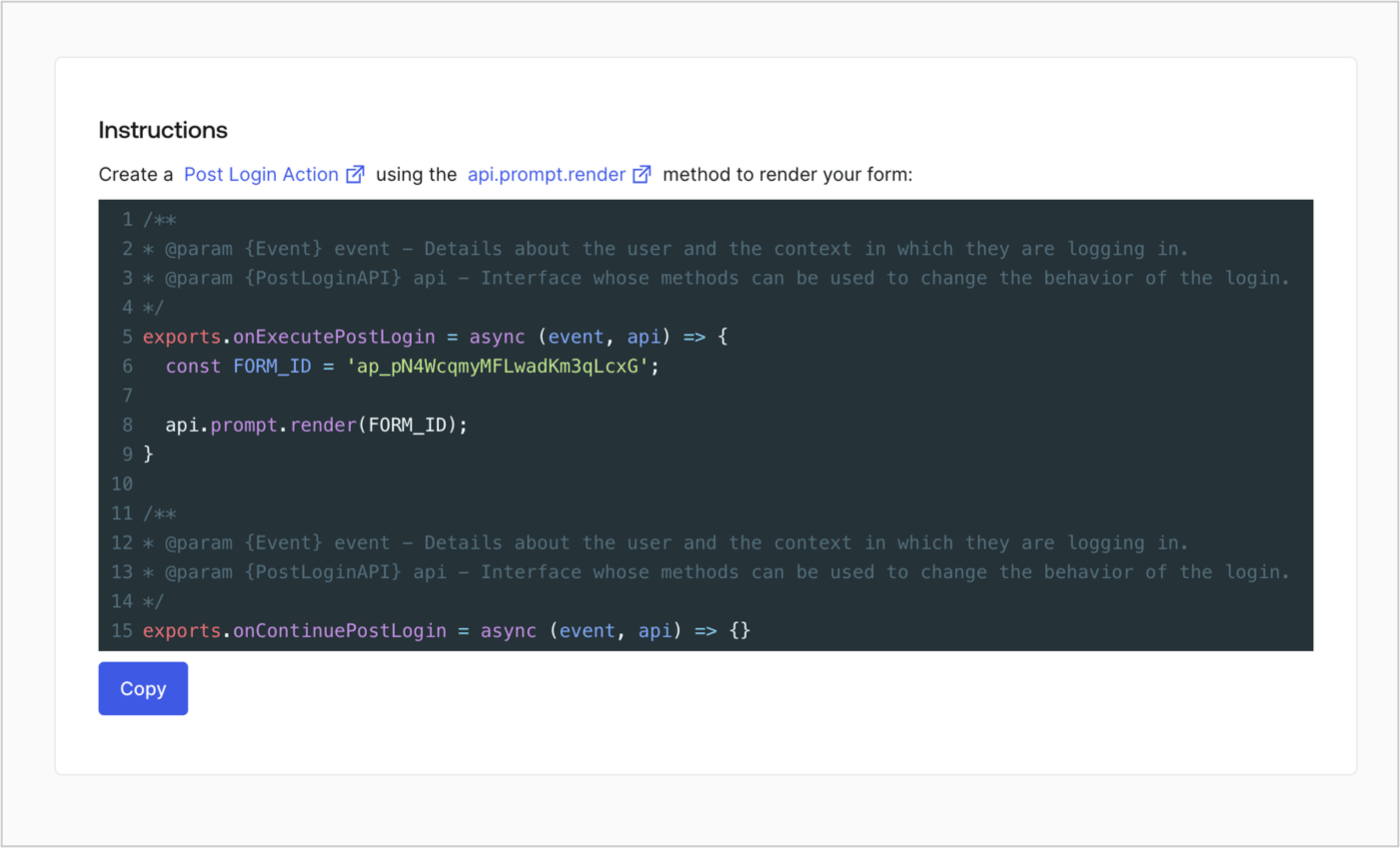
以下の手順に従って、カスタムの Post Login Action でフォームを表示するためのレンダリングコードを取得します。

* フォームエディターで、**`<> Render`** を選択します。
* **Copy** を選択します。
<Frame>
  <img src="https://mintcdn.com/docs-staging-feat-init-gt-translations/a36N0BfSEyE-0ccm/docs/images/cdy7uua7fh8z/2EIUzc539sq9lwoTKbjoJv/496a864c0fc44a782c9cadca119dbfb0/embed.png?fit=max&auto=format&n=a36N0BfSEyE-0ccm&q=85&s=7fada95f81e2bd5b9bc0158ca7aa692a" alt="Dashboard > Actions > Forms > Form > Embed" data-og-width="1400" width="1400" data-og-height="848" height="848" data-path="docs/images/cdy7uua7fh8z/2EIUzc539sq9lwoTKbjoJv/496a864c0fc44a782c9cadca119dbfb0/embed.png" data-optimize="true" data-opv="3" srcset="https://mintcdn.com/docs-staging-feat-init-gt-translations/a36N0BfSEyE-0ccm/docs/images/cdy7uua7fh8z/2EIUzc539sq9lwoTKbjoJv/496a864c0fc44a782c9cadca119dbfb0/embed.png?w=280&fit=max&auto=format&n=a36N0BfSEyE-0ccm&q=85&s=c96aba54debfff337737ea834803cf98 280w, https://mintcdn.com/docs-staging-feat-init-gt-translations/a36N0BfSEyE-0ccm/docs/images/cdy7uua7fh8z/2EIUzc539sq9lwoTKbjoJv/496a864c0fc44a782c9cadca119dbfb0/embed.png?w=560&fit=max&auto=format&n=a36N0BfSEyE-0ccm&q=85&s=4fbe86024c3cfac575f63835cf63e6ef 560w, https://mintcdn.com/docs-staging-feat-init-gt-translations/a36N0BfSEyE-0ccm/docs/images/cdy7uua7fh8z/2EIUzc539sq9lwoTKbjoJv/496a864c0fc44a782c9cadca119dbfb0/embed.png?w=840&fit=max&auto=format&n=a36N0BfSEyE-0ccm&q=85&s=ae85f533fcab1c5ba451509c91792985 840w, https://mintcdn.com/docs-staging-feat-init-gt-translations/a36N0BfSEyE-0ccm/docs/images/cdy7uua7fh8z/2EIUzc539sq9lwoTKbjoJv/496a864c0fc44a782c9cadca119dbfb0/embed.png?w=1100&fit=max&auto=format&n=a36N0BfSEyE-0ccm&q=85&s=797dcae6d30aedab2139683a317b8d72 1100w, https://mintcdn.com/docs-staging-feat-init-gt-translations/a36N0BfSEyE-0ccm/docs/images/cdy7uua7fh8z/2EIUzc539sq9lwoTKbjoJv/496a864c0fc44a782c9cadca119dbfb0/embed.png?w=1650&fit=max&auto=format&n=a36N0BfSEyE-0ccm&q=85&s=e5f80193d53636346459d4e52bb7e20a 1650w, https://mintcdn.com/docs-staging-feat-init-gt-translations/a36N0BfSEyE-0ccm/docs/images/cdy7uua7fh8z/2EIUzc539sq9lwoTKbjoJv/496a864c0fc44a782c9cadca119dbfb0/embed.png?w=2500&fit=max&auto=format&n=a36N0BfSEyE-0ccm&q=85&s=0477c36c20ba30e9836b17ad539ac5df 2500w" />
</Frame>

<h2 id="create-a-post-login-action">
  Post Login Action を作成する
</h2>

次の手順に従って、フォームを表示する post-login Action を作成します。

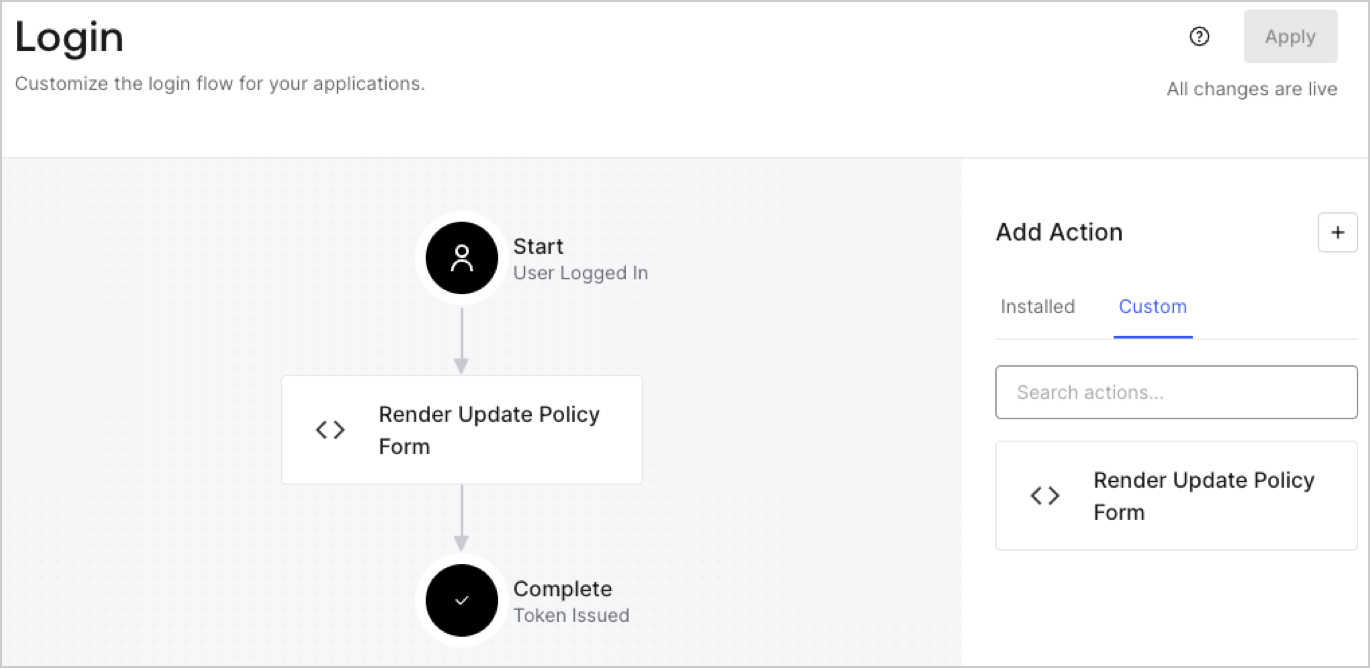
1. **Auth0 Dashboard > Actions > Flows > Login** に移動します。
2. **+** アイコンを選択し、**Build from scratch** を選択します。

   * **Name**: `Render Update Policy Form` と入力します。
   * **Trigger**: `Login / Post Login` を選択します。
   * **Runtime**: 推奨バージョンを選択します。
3. **Create** を選択します。

post-login Action を設定するには、次の手順を実行します。

1. Code editor 内の既存のコードを削除します。
2. フォームを表示するコードを Code editor に貼り付けます。
3. フォームを表示するための条件ロジックを定義するよう、コードを編集します。

   ```javascript lines theme={null}
   /**
   * @param {Event} event - ユーザーと、そのユーザーがログインしているコンテキストに関する詳細。
   * @param {PostLoginAPI} api - ログインの動作を変更するためにメソッドを使用できるインターフェース。
   */
   exports.onExecutePostLogin = async (event, api) => {
     const FORM_ID = 'REPLACE_WITH_YOUR_FORM_ID';

     if (event.user.app_metadata.privacy_policies !== true) {
       api.prompt.render(FORM_ID);
     }
   }

   exports.onContinuePostLogin = async (event, api) => { }
   ```

   <Callout icon="file-lines" color="#0EA5E9" iconType="regular">
     上記のコード例では、ユーザーの app metadata に `privacy_policies` プロパティがない場合、フォームが表示されます。
   </Callout>
4. **Deploy** を選択します。
5. **Render Update Policy Form** Action を **Login** フローにドラッグ＆ドロップします。

   <Frame>
     <img src="https://mintcdn.com/docs-staging-feat-init-gt-translations/lXCEOVvU32b-YQad/docs/images/cdy7uua7fh8z/5TOwDgevZsBqd7yZynUYWU/41ca909dc3007aed4f40ff794a05efa5/postlogin.png?fit=max&auto=format&n=lXCEOVvU32b-YQad&q=85&s=a069e9203f1e7cd012c1bf8846775f1f" alt="Dashboard > Forms > Use Case > Render update policy form login action" data-og-width="1370" width="1370" data-og-height="668" height="668" data-path="docs/images/cdy7uua7fh8z/5TOwDgevZsBqd7yZynUYWU/41ca909dc3007aed4f40ff794a05efa5/postlogin.png" data-optimize="true" data-opv="3" srcset="https://mintcdn.com/docs-staging-feat-init-gt-translations/lXCEOVvU32b-YQad/docs/images/cdy7uua7fh8z/5TOwDgevZsBqd7yZynUYWU/41ca909dc3007aed4f40ff794a05efa5/postlogin.png?w=280&fit=max&auto=format&n=lXCEOVvU32b-YQad&q=85&s=40bbe7430cf72b4007cb0adccf91be09 280w, https://mintcdn.com/docs-staging-feat-init-gt-translations/lXCEOVvU32b-YQad/docs/images/cdy7uua7fh8z/5TOwDgevZsBqd7yZynUYWU/41ca909dc3007aed4f40ff794a05efa5/postlogin.png?w=560&fit=max&auto=format&n=lXCEOVvU32b-YQad&q=85&s=0d06ce6b7d703542122ac873154b5617 560w, https://mintcdn.com/docs-staging-feat-init-gt-translations/lXCEOVvU32b-YQad/docs/images/cdy7uua7fh8z/5TOwDgevZsBqd7yZynUYWU/41ca909dc3007aed4f40ff794a05efa5/postlogin.png?w=840&fit=max&auto=format&n=lXCEOVvU32b-YQad&q=85&s=c600ed8821f1b49a81bbad5c96a3bc57 840w, https://mintcdn.com/docs-staging-feat-init-gt-translations/lXCEOVvU32b-YQad/docs/images/cdy7uua7fh8z/5TOwDgevZsBqd7yZynUYWU/41ca909dc3007aed4f40ff794a05efa5/postlogin.png?w=1100&fit=max&auto=format&n=lXCEOVvU32b-YQad&q=85&s=67905a991172f002c6c7d930c931c465 1100w, https://mintcdn.com/docs-staging-feat-init-gt-translations/lXCEOVvU32b-YQad/docs/images/cdy7uua7fh8z/5TOwDgevZsBqd7yZynUYWU/41ca909dc3007aed4f40ff794a05efa5/postlogin.png?w=1650&fit=max&auto=format&n=lXCEOVvU32b-YQad&q=85&s=e3aa9e1cf8852f02eb3f336dec82d4db 1650w, https://mintcdn.com/docs-staging-feat-init-gt-translations/lXCEOVvU32b-YQad/docs/images/cdy7uua7fh8z/5TOwDgevZsBqd7yZynUYWU/41ca909dc3007aed4f40ff794a05efa5/postlogin.png?w=2500&fit=max&auto=format&n=lXCEOVvU32b-YQad&q=85&s=25c51b50cbc7ccca4314cfb9fa73a63d 2500w" />
   </Frame>
6. **Apply** を選択します。

<h3 id="test-implementation">
  実装をテストする
</h3>

次の手順に従って、実装をテストします。

1. `app_metadata` 属性の `privacy_policies` に値が設定されていない既存ユーザーでログインします。
2. Login フロー の post-login Action によってフォームが表示され、同意を求めるプロンプトが表示されます。
3. **Auth0 Dashboard > User Management > Users** を選択し、該当するユーザーを見つけて、`app_metadata` 属性の `privacy_policies` に `true` の値とタイムスタンプが含まれていることを確認します。