> ## Documentation Index
> Fetch the complete documentation index at: https://docs-staging-feat-init-gt-translations.mintlify.site/llms.txt
> Use this file to discover all available pages before exploring further.

> Learn how to configure an update policy form using Forms for Actions for users to review and accept new terms of service or consent updates.

# Use Cases: Configure an update policy form using Forms

<Card title="Before you start">
  1. Create a [Machine-to-Machine Application](/docs/get-started/auth0-overview/create-applications/machine-to-machine-apps) with the following scopes enabled:

  * `read:users`
  * `update:users`
  * `create:users`
  * `read:users_app_metadata`
  * `update:users_app_metadata`
  * `create:users_app_metadata`

  2. Add a [Vault connection](/docs/customize/forms/vault) using the M2M application credentials.
</Card>

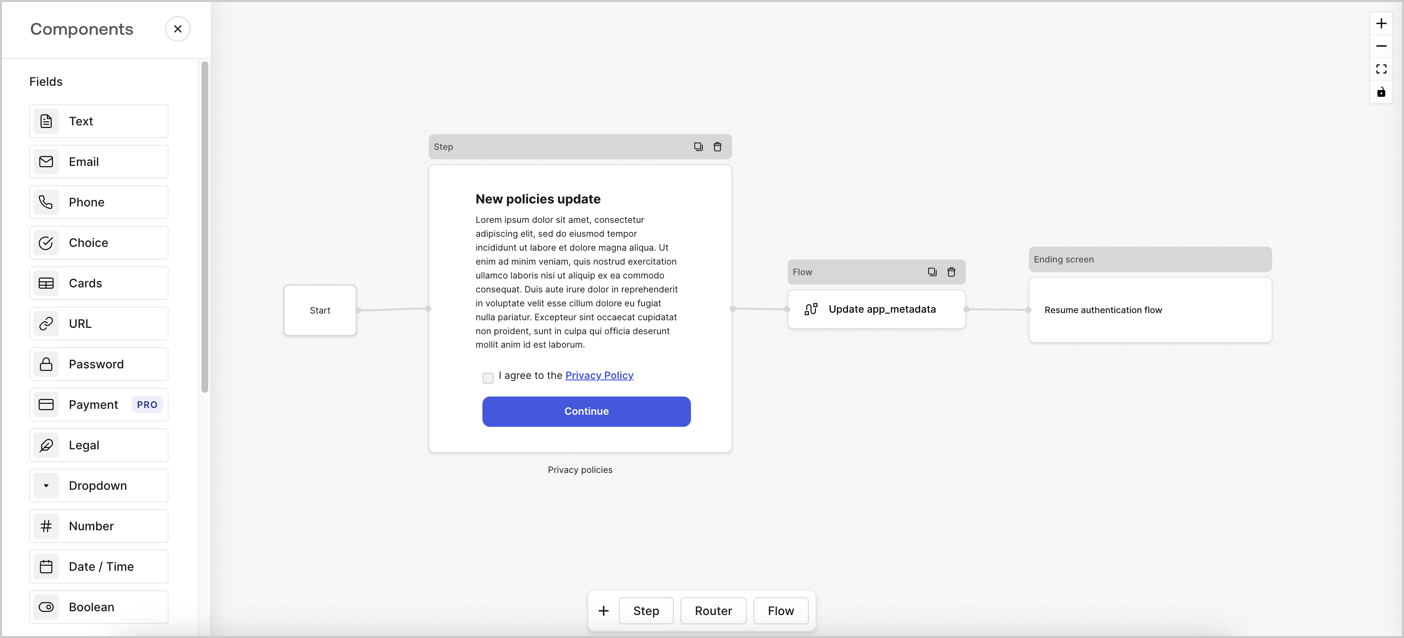
Forms for Actions allows you to create custom privacy policies flows and store the consent under the `app_metadata` object.
<Frame>
  <img src="https://mintcdn.com/docs-staging-feat-init-gt-translations/Z7xMzrN9GfTmJzgq/docs/images/cdy7uua7fh8z/6i68dMvHDTijfRmSgN1x8Q/ad900e7d4c0fb34645921435472b8684/privavy-policy-form.png?fit=max&auto=format&n=Z7xMzrN9GfTmJzgq&q=85&s=aaab67fba47d3777af68976a6b2f9477" alt="Dashboard > Actions > Forms > Privacy policy use case" data-og-width="1404" width="1404" data-og-height="638" height="638" data-path="docs/images/cdy7uua7fh8z/6i68dMvHDTijfRmSgN1x8Q/ad900e7d4c0fb34645921435472b8684/privavy-policy-form.png" data-optimize="true" data-opv="3" srcset="https://mintcdn.com/docs-staging-feat-init-gt-translations/Z7xMzrN9GfTmJzgq/docs/images/cdy7uua7fh8z/6i68dMvHDTijfRmSgN1x8Q/ad900e7d4c0fb34645921435472b8684/privavy-policy-form.png?w=280&fit=max&auto=format&n=Z7xMzrN9GfTmJzgq&q=85&s=73107341375a0f95beee6633c81d9287 280w, https://mintcdn.com/docs-staging-feat-init-gt-translations/Z7xMzrN9GfTmJzgq/docs/images/cdy7uua7fh8z/6i68dMvHDTijfRmSgN1x8Q/ad900e7d4c0fb34645921435472b8684/privavy-policy-form.png?w=560&fit=max&auto=format&n=Z7xMzrN9GfTmJzgq&q=85&s=a52e7aad110b7b1d0cded9e6b5a6912a 560w, https://mintcdn.com/docs-staging-feat-init-gt-translations/Z7xMzrN9GfTmJzgq/docs/images/cdy7uua7fh8z/6i68dMvHDTijfRmSgN1x8Q/ad900e7d4c0fb34645921435472b8684/privavy-policy-form.png?w=840&fit=max&auto=format&n=Z7xMzrN9GfTmJzgq&q=85&s=c6875201ae3d93aaecf7e5211dec350e 840w, https://mintcdn.com/docs-staging-feat-init-gt-translations/Z7xMzrN9GfTmJzgq/docs/images/cdy7uua7fh8z/6i68dMvHDTijfRmSgN1x8Q/ad900e7d4c0fb34645921435472b8684/privavy-policy-form.png?w=1100&fit=max&auto=format&n=Z7xMzrN9GfTmJzgq&q=85&s=e23dd47765eb8c8a1414002aa7b19dcc 1100w, https://mintcdn.com/docs-staging-feat-init-gt-translations/Z7xMzrN9GfTmJzgq/docs/images/cdy7uua7fh8z/6i68dMvHDTijfRmSgN1x8Q/ad900e7d4c0fb34645921435472b8684/privavy-policy-form.png?w=1650&fit=max&auto=format&n=Z7xMzrN9GfTmJzgq&q=85&s=c43c329fb0d31c4bd5bfd40a51382e94 1650w, https://mintcdn.com/docs-staging-feat-init-gt-translations/Z7xMzrN9GfTmJzgq/docs/images/cdy7uua7fh8z/6i68dMvHDTijfRmSgN1x8Q/ad900e7d4c0fb34645921435472b8684/privavy-policy-form.png?w=2500&fit=max&auto=format&n=Z7xMzrN9GfTmJzgq&q=85&s=b7293cf4cb33559d40f1a3e4dbc4179e 2500w" />
</Frame>

The sections below outline how you can create an Update Policy form using nodes and flows, along with steps for adding your form to a [Post Login](/docs/customize/actions/explore-triggers/signup-and-login-triggers/login-trigger) Action.

## Create a form from scratch

Follow these steps to create a form to gather information:

1. Open the Form editor by selecting **Auth0 Dashboard > Actions > Forms.**
2. Select **Create Form** > **Start from scratch**.

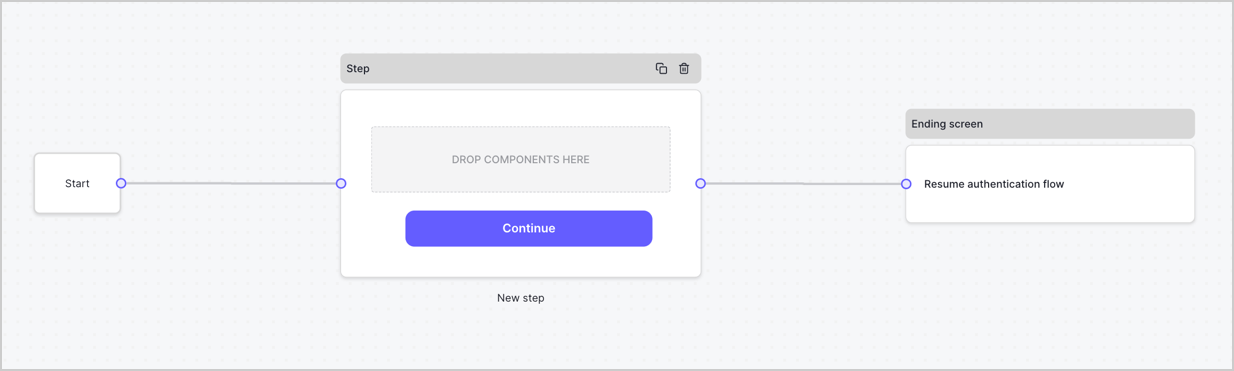
By default, a new form contains a Start node, a Step node, and an Ending screen node.
<Frame>
  <img src="https://mintcdn.com/docs-staging-feat-init-gt-translations/sDOAAkLQ2_fRrOaM/docs/images/cdy7uua7fh8z/2TZ9jSjgEcARFpULI6hz4R/a4319a1bd482f2ee5cc23100fdb2f42c/New-form-Forms-for-action-use-case.png?fit=max&auto=format&n=sDOAAkLQ2_fRrOaM&q=85&s=dbdf9fe01b77a17c4a41091d9a1e9bf9" alt="Dashboard > Forms > Use Cases > Form" data-og-width="1234" width="1234" data-og-height="371" height="371" data-path="docs/images/cdy7uua7fh8z/2TZ9jSjgEcARFpULI6hz4R/a4319a1bd482f2ee5cc23100fdb2f42c/New-form-Forms-for-action-use-case.png" data-optimize="true" data-opv="3" srcset="https://mintcdn.com/docs-staging-feat-init-gt-translations/sDOAAkLQ2_fRrOaM/docs/images/cdy7uua7fh8z/2TZ9jSjgEcARFpULI6hz4R/a4319a1bd482f2ee5cc23100fdb2f42c/New-form-Forms-for-action-use-case.png?w=280&fit=max&auto=format&n=sDOAAkLQ2_fRrOaM&q=85&s=62eec74794ae922f10e5c777988772b6 280w, https://mintcdn.com/docs-staging-feat-init-gt-translations/sDOAAkLQ2_fRrOaM/docs/images/cdy7uua7fh8z/2TZ9jSjgEcARFpULI6hz4R/a4319a1bd482f2ee5cc23100fdb2f42c/New-form-Forms-for-action-use-case.png?w=560&fit=max&auto=format&n=sDOAAkLQ2_fRrOaM&q=85&s=68dcc7d6f276068053f60666f49abb9f 560w, https://mintcdn.com/docs-staging-feat-init-gt-translations/sDOAAkLQ2_fRrOaM/docs/images/cdy7uua7fh8z/2TZ9jSjgEcARFpULI6hz4R/a4319a1bd482f2ee5cc23100fdb2f42c/New-form-Forms-for-action-use-case.png?w=840&fit=max&auto=format&n=sDOAAkLQ2_fRrOaM&q=85&s=df73f08c1ebc95993afa4756471e56fb 840w, https://mintcdn.com/docs-staging-feat-init-gt-translations/sDOAAkLQ2_fRrOaM/docs/images/cdy7uua7fh8z/2TZ9jSjgEcARFpULI6hz4R/a4319a1bd482f2ee5cc23100fdb2f42c/New-form-Forms-for-action-use-case.png?w=1100&fit=max&auto=format&n=sDOAAkLQ2_fRrOaM&q=85&s=06032f1daf7e80bfa3481a75d497808f 1100w, https://mintcdn.com/docs-staging-feat-init-gt-translations/sDOAAkLQ2_fRrOaM/docs/images/cdy7uua7fh8z/2TZ9jSjgEcARFpULI6hz4R/a4319a1bd482f2ee5cc23100fdb2f42c/New-form-Forms-for-action-use-case.png?w=1650&fit=max&auto=format&n=sDOAAkLQ2_fRrOaM&q=85&s=b768249523c94674a85404117342d9d9 1650w, https://mintcdn.com/docs-staging-feat-init-gt-translations/sDOAAkLQ2_fRrOaM/docs/images/cdy7uua7fh8z/2TZ9jSjgEcARFpULI6hz4R/a4319a1bd482f2ee5cc23100fdb2f42c/New-form-Forms-for-action-use-case.png?w=2500&fit=max&auto=format&n=sDOAAkLQ2_fRrOaM&q=85&s=4337a2b799ee0f628f9990752ecd5948 2500w" />
</Frame>

### Configure the Step node

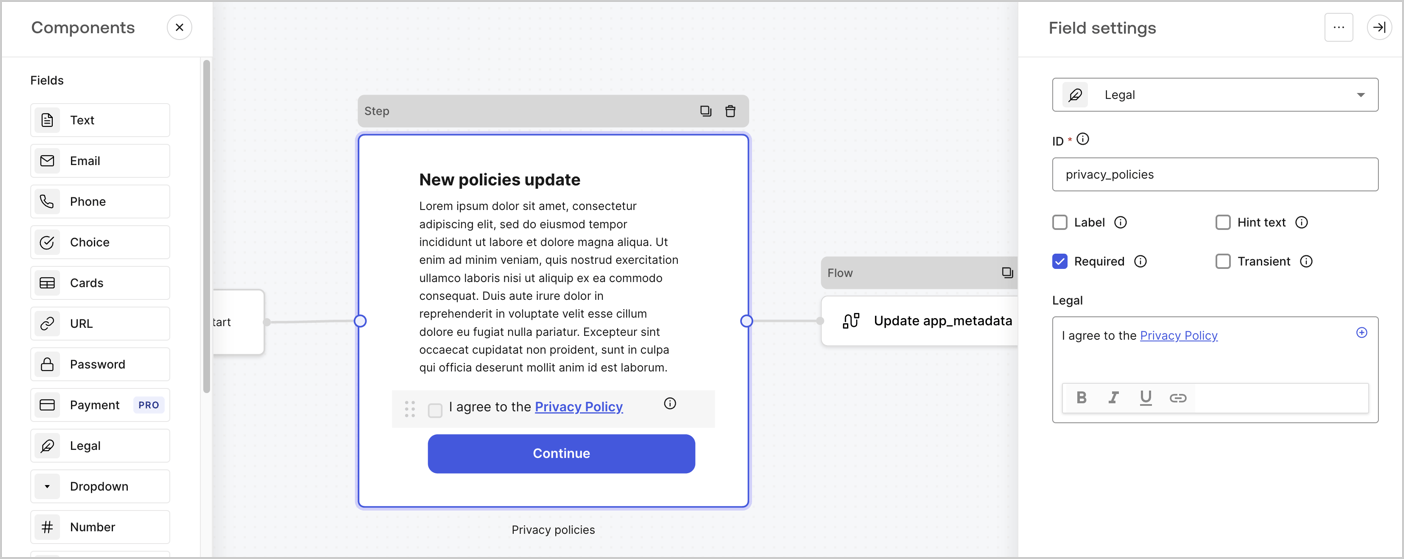
The Step node is the graphical interface visible to users. Add [Fields](/docs/customize/forms/nodes-and-components) to the Step node to collect the new agreement acceptance value by following these steps:

1. Drag a **Rich text** field from the **Components menu** into the **Step** node.

   * **Rich text**: Enter a description of your privacy policies updates.
   * Select **Save**.
2. Drag a **Legal** field into the **Step** node.

   * **ID**: Enter `privacy_policies`.
   * **Required**: Enable the checkbox.
   * **Legal**: Enter `I agree to the Privacy Policy`.
   * Select **Save**.
3. Select **Publish** to save.
<Frame>
  <img src="https://mintcdn.com/docs-staging-feat-init-gt-translations/OTmOpUeX_UZGyUmI/docs/images/cdy7uua7fh8z/59zFFjQjAnjogkc2QGIqqJ/0ad66b1b636544122aa4e65968b76c2c/privacy-policy-step-node.png?fit=max&auto=format&n=OTmOpUeX_UZGyUmI&q=85&s=946d16005903908b2339fbade25a6736" alt="Dashboard > Actions > Forms > Use case privacy policy step node" data-og-width="1404" width="1404" data-og-height="559" height="559" data-path="docs/images/cdy7uua7fh8z/59zFFjQjAnjogkc2QGIqqJ/0ad66b1b636544122aa4e65968b76c2c/privacy-policy-step-node.png" data-optimize="true" data-opv="3" srcset="https://mintcdn.com/docs-staging-feat-init-gt-translations/OTmOpUeX_UZGyUmI/docs/images/cdy7uua7fh8z/59zFFjQjAnjogkc2QGIqqJ/0ad66b1b636544122aa4e65968b76c2c/privacy-policy-step-node.png?w=280&fit=max&auto=format&n=OTmOpUeX_UZGyUmI&q=85&s=e0cf74eb0a9f9a88d6501e338ecfaf0e 280w, https://mintcdn.com/docs-staging-feat-init-gt-translations/OTmOpUeX_UZGyUmI/docs/images/cdy7uua7fh8z/59zFFjQjAnjogkc2QGIqqJ/0ad66b1b636544122aa4e65968b76c2c/privacy-policy-step-node.png?w=560&fit=max&auto=format&n=OTmOpUeX_UZGyUmI&q=85&s=4fe2e60b75b710c31f684ff898a181ef 560w, https://mintcdn.com/docs-staging-feat-init-gt-translations/OTmOpUeX_UZGyUmI/docs/images/cdy7uua7fh8z/59zFFjQjAnjogkc2QGIqqJ/0ad66b1b636544122aa4e65968b76c2c/privacy-policy-step-node.png?w=840&fit=max&auto=format&n=OTmOpUeX_UZGyUmI&q=85&s=2c5ccb1358e027fa79c4d1086050ae6a 840w, https://mintcdn.com/docs-staging-feat-init-gt-translations/OTmOpUeX_UZGyUmI/docs/images/cdy7uua7fh8z/59zFFjQjAnjogkc2QGIqqJ/0ad66b1b636544122aa4e65968b76c2c/privacy-policy-step-node.png?w=1100&fit=max&auto=format&n=OTmOpUeX_UZGyUmI&q=85&s=89685cbaa611b13554f7badbddc15a9d 1100w, https://mintcdn.com/docs-staging-feat-init-gt-translations/OTmOpUeX_UZGyUmI/docs/images/cdy7uua7fh8z/59zFFjQjAnjogkc2QGIqqJ/0ad66b1b636544122aa4e65968b76c2c/privacy-policy-step-node.png?w=1650&fit=max&auto=format&n=OTmOpUeX_UZGyUmI&q=85&s=57793bb9403a51118455de09705dc26c 1650w, https://mintcdn.com/docs-staging-feat-init-gt-translations/OTmOpUeX_UZGyUmI/docs/images/cdy7uua7fh8z/59zFFjQjAnjogkc2QGIqqJ/0ad66b1b636544122aa4e65968b76c2c/privacy-policy-step-node.png?w=2500&fit=max&auto=format&n=OTmOpUeX_UZGyUmI&q=85&s=19c028bf9b800dbd5c355493b4c3cbf7 2500w" />
</Frame>

### Configure the Flow node

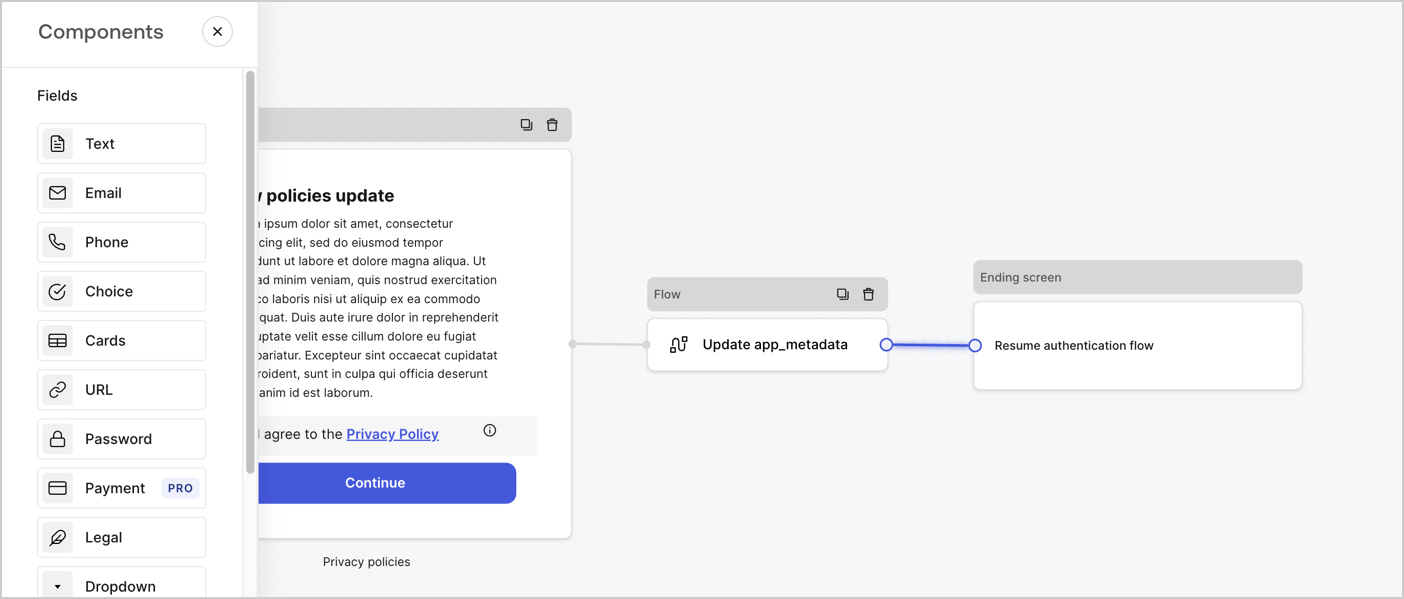
Add a **Flow** node after the **Step** node to update the `app_metadata` and resume the authentication flow by following these steps:

1. Select **Flow** from the bottom of the Form editor.
2. Remove the existing link between the **Step** and **Ending Screen** nodes.
3. Select the new **Flow** > **Click to add a flow** > **Create a new flow.**

   * Enter `Update app_metadata` in the **Name** field.
   * Select **Create**.
   * Select **Save**.
4. Link the **Flow** node to the **Step** and **Ending Screen** nodes as pictured below.
5. Select **Publish** to save.
<Frame>
  <img src="https://mintcdn.com/docs-staging-feat-init-gt-translations/Z7xMzrN9GfTmJzgq/docs/images/cdy7uua7fh8z/6YIkzm7SrpM9LW76AXuRzh/353c518fe82bbaa440836da1d83596d6/link-policies.png?fit=max&auto=format&n=Z7xMzrN9GfTmJzgq&q=85&s=c363f2dc295c1efbe88d7832573b0d6d" alt="Dashboard > Actions > Forms > Form" data-og-width="1404" width="1404" data-og-height="599" height="599" data-path="docs/images/cdy7uua7fh8z/6YIkzm7SrpM9LW76AXuRzh/353c518fe82bbaa440836da1d83596d6/link-policies.png" data-optimize="true" data-opv="3" srcset="https://mintcdn.com/docs-staging-feat-init-gt-translations/Z7xMzrN9GfTmJzgq/docs/images/cdy7uua7fh8z/6YIkzm7SrpM9LW76AXuRzh/353c518fe82bbaa440836da1d83596d6/link-policies.png?w=280&fit=max&auto=format&n=Z7xMzrN9GfTmJzgq&q=85&s=f813089ed00b79e389ff2add7650b800 280w, https://mintcdn.com/docs-staging-feat-init-gt-translations/Z7xMzrN9GfTmJzgq/docs/images/cdy7uua7fh8z/6YIkzm7SrpM9LW76AXuRzh/353c518fe82bbaa440836da1d83596d6/link-policies.png?w=560&fit=max&auto=format&n=Z7xMzrN9GfTmJzgq&q=85&s=48b167a607631e3cb63cbb4a6ea7b6e1 560w, https://mintcdn.com/docs-staging-feat-init-gt-translations/Z7xMzrN9GfTmJzgq/docs/images/cdy7uua7fh8z/6YIkzm7SrpM9LW76AXuRzh/353c518fe82bbaa440836da1d83596d6/link-policies.png?w=840&fit=max&auto=format&n=Z7xMzrN9GfTmJzgq&q=85&s=a7847fd10c9464377927cb861e7cb526 840w, https://mintcdn.com/docs-staging-feat-init-gt-translations/Z7xMzrN9GfTmJzgq/docs/images/cdy7uua7fh8z/6YIkzm7SrpM9LW76AXuRzh/353c518fe82bbaa440836da1d83596d6/link-policies.png?w=1100&fit=max&auto=format&n=Z7xMzrN9GfTmJzgq&q=85&s=9ee713484b2d9f5d527e95b1678ecade 1100w, https://mintcdn.com/docs-staging-feat-init-gt-translations/Z7xMzrN9GfTmJzgq/docs/images/cdy7uua7fh8z/6YIkzm7SrpM9LW76AXuRzh/353c518fe82bbaa440836da1d83596d6/link-policies.png?w=1650&fit=max&auto=format&n=Z7xMzrN9GfTmJzgq&q=85&s=11bdfe5191aac125c093281527a7ef93 1650w, https://mintcdn.com/docs-staging-feat-init-gt-translations/Z7xMzrN9GfTmJzgq/docs/images/cdy7uua7fh8z/6YIkzm7SrpM9LW76AXuRzh/353c518fe82bbaa440836da1d83596d6/link-policies.png?w=2500&fit=max&auto=format&n=Z7xMzrN9GfTmJzgq&q=85&s=af1d3392ce8583b46926d87517ed0f92 2500w" />
</Frame>

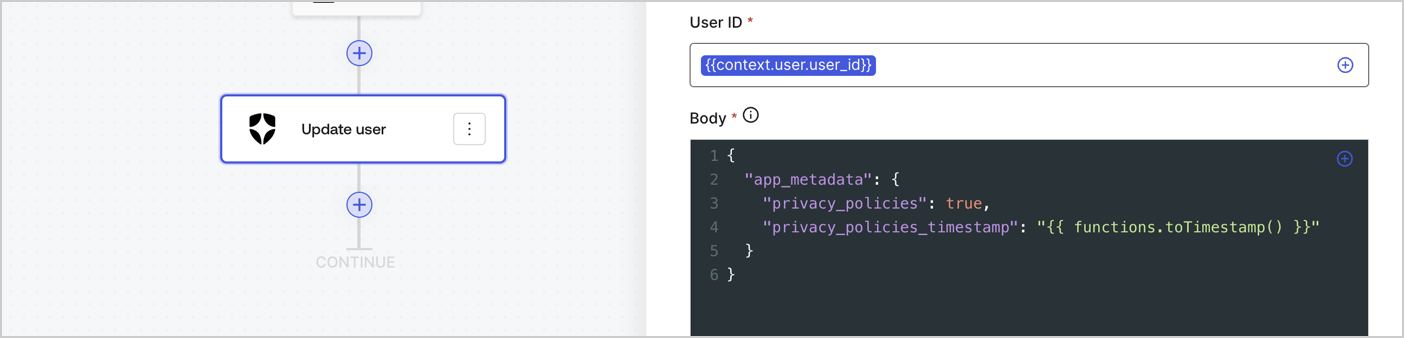
Add an Auth0 Update user action to the flow by following these steps:

1. Select the **Flow** **Update app\_metadata** > **Edit flow** to open the Flow editor in a new tab.
2. Below the StartAction, select the **+** icon to add an **Update user** action. Complete the fields below, then select **Save** to continue.

   * **Connection**: Select from the dropdown the Vault connection to your M2M application.

   * **User ID**: Enter `{{context.user.user_id}}`.

   * **Body**: Copy and paste the following code to update the app\_metadata with the privacy\_policies and privacy\_policies\_timestamp properties.

     ```text lines theme={null}
     {
       "app_metadata": {
         "privacy_policies": true,
         "privacy_policies_timestamp": "{{ functions.toTimestamp() }}"
       }
     }
     ```

   * Select **Save**.
3. Select **Publish** to save.
<Frame>
  <img src="https://mintcdn.com/docs-staging-feat-init-gt-translations/lFCCXa5dVspGIuTF/docs/images/cdy7uua7fh8z/CvMNIwWrOUwaFW4X3G28p/1fb70ae57a20749d9ffaaba8dc0b7e26/update-user-privacy.png?fit=max&auto=format&n=lFCCXa5dVspGIuTF&q=85&s=62a86412540136e9150b8156cc42c10c" alt="Dashboard > Actions > Forms > User case privacy policy code" data-og-width="1404" width="1404" data-og-height="338" height="338" data-path="docs/images/cdy7uua7fh8z/CvMNIwWrOUwaFW4X3G28p/1fb70ae57a20749d9ffaaba8dc0b7e26/update-user-privacy.png" data-optimize="true" data-opv="3" srcset="https://mintcdn.com/docs-staging-feat-init-gt-translations/lFCCXa5dVspGIuTF/docs/images/cdy7uua7fh8z/CvMNIwWrOUwaFW4X3G28p/1fb70ae57a20749d9ffaaba8dc0b7e26/update-user-privacy.png?w=280&fit=max&auto=format&n=lFCCXa5dVspGIuTF&q=85&s=17c0f8847fbb11c6bc63e5f5d88603f6 280w, https://mintcdn.com/docs-staging-feat-init-gt-translations/lFCCXa5dVspGIuTF/docs/images/cdy7uua7fh8z/CvMNIwWrOUwaFW4X3G28p/1fb70ae57a20749d9ffaaba8dc0b7e26/update-user-privacy.png?w=560&fit=max&auto=format&n=lFCCXa5dVspGIuTF&q=85&s=d158f923f3e80a55e4da888994725b93 560w, https://mintcdn.com/docs-staging-feat-init-gt-translations/lFCCXa5dVspGIuTF/docs/images/cdy7uua7fh8z/CvMNIwWrOUwaFW4X3G28p/1fb70ae57a20749d9ffaaba8dc0b7e26/update-user-privacy.png?w=840&fit=max&auto=format&n=lFCCXa5dVspGIuTF&q=85&s=7d2f546693c33012e60b389e8f31fbcf 840w, https://mintcdn.com/docs-staging-feat-init-gt-translations/lFCCXa5dVspGIuTF/docs/images/cdy7uua7fh8z/CvMNIwWrOUwaFW4X3G28p/1fb70ae57a20749d9ffaaba8dc0b7e26/update-user-privacy.png?w=1100&fit=max&auto=format&n=lFCCXa5dVspGIuTF&q=85&s=7a7713f0826af98508839f59588143d6 1100w, https://mintcdn.com/docs-staging-feat-init-gt-translations/lFCCXa5dVspGIuTF/docs/images/cdy7uua7fh8z/CvMNIwWrOUwaFW4X3G28p/1fb70ae57a20749d9ffaaba8dc0b7e26/update-user-privacy.png?w=1650&fit=max&auto=format&n=lFCCXa5dVspGIuTF&q=85&s=1f67727d4db93eadc56743b95dc24ecd 1650w, https://mintcdn.com/docs-staging-feat-init-gt-translations/lFCCXa5dVspGIuTF/docs/images/cdy7uua7fh8z/CvMNIwWrOUwaFW4X3G28p/1fb70ae57a20749d9ffaaba8dc0b7e26/update-user-privacy.png?w=2500&fit=max&auto=format&n=lFCCXa5dVspGIuTF&q=85&s=ecbd1bfc2d939285a42404c8010dcd67 2500w" />
</Frame>

<Callout icon="file-lines" color="#0EA5E9" iconType="regular">
  The flow **Update app\_metadata** adds a `privacy_policies true` value to the app`_metadata` object and also generates a timestamp with a [helper function.](/docs/customize/forms/variables)
</Callout>

## Retrieve the form render code

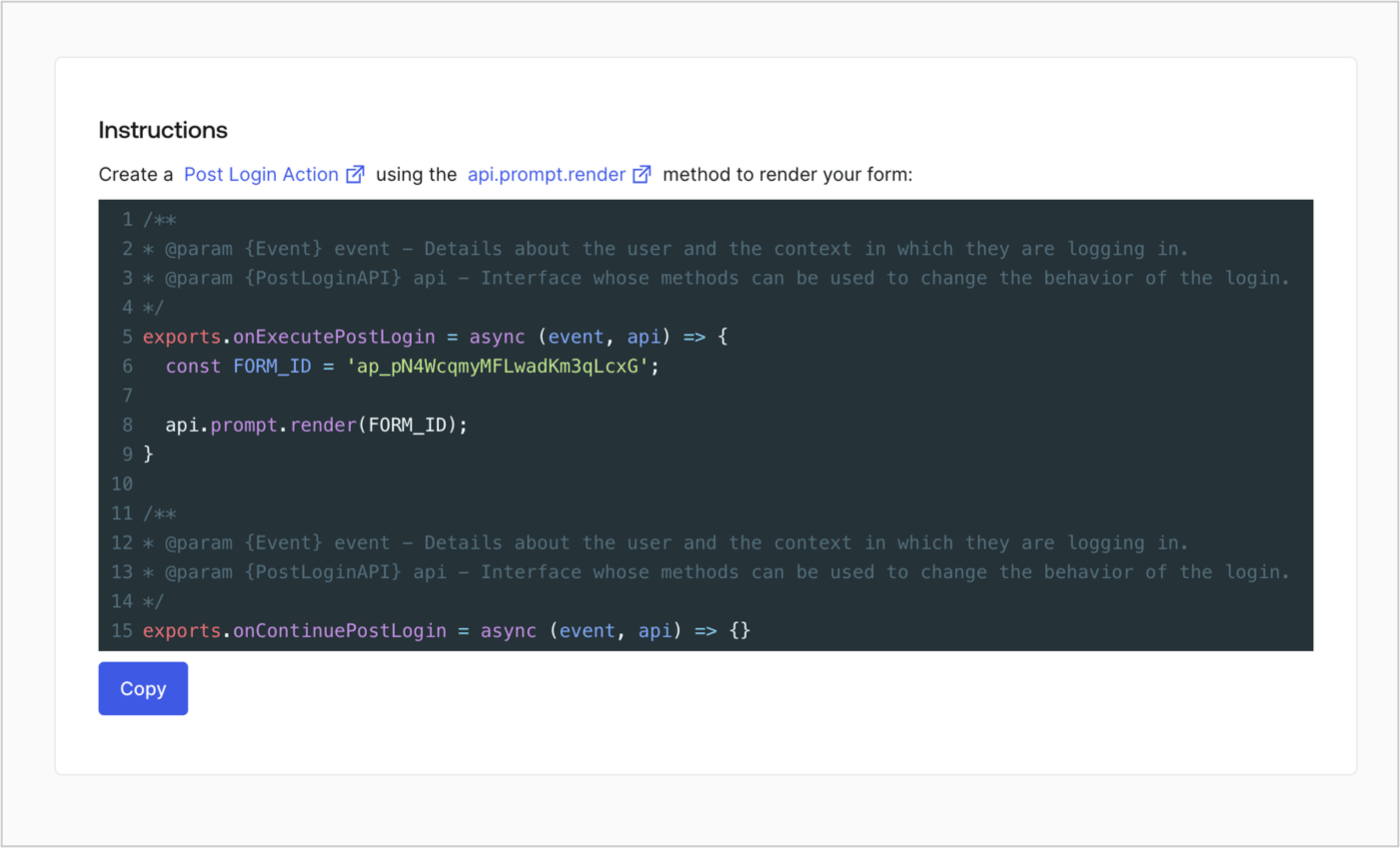
Retrieve your form render code to visually render the form with a custom Post Login Action by following these steps:

* From the Form editor, select **`<> Render`**.
* Select **Copy**.
<Frame>
  <img src="https://mintcdn.com/docs-staging-feat-init-gt-translations/a36N0BfSEyE-0ccm/docs/images/cdy7uua7fh8z/2EIUzc539sq9lwoTKbjoJv/496a864c0fc44a782c9cadca119dbfb0/embed.png?fit=max&auto=format&n=a36N0BfSEyE-0ccm&q=85&s=7fada95f81e2bd5b9bc0158ca7aa692a" alt="Dashboard > Actions > Forms > Form > Embed" data-og-width="1400" width="1400" data-og-height="848" height="848" data-path="docs/images/cdy7uua7fh8z/2EIUzc539sq9lwoTKbjoJv/496a864c0fc44a782c9cadca119dbfb0/embed.png" data-optimize="true" data-opv="3" srcset="https://mintcdn.com/docs-staging-feat-init-gt-translations/a36N0BfSEyE-0ccm/docs/images/cdy7uua7fh8z/2EIUzc539sq9lwoTKbjoJv/496a864c0fc44a782c9cadca119dbfb0/embed.png?w=280&fit=max&auto=format&n=a36N0BfSEyE-0ccm&q=85&s=c96aba54debfff337737ea834803cf98 280w, https://mintcdn.com/docs-staging-feat-init-gt-translations/a36N0BfSEyE-0ccm/docs/images/cdy7uua7fh8z/2EIUzc539sq9lwoTKbjoJv/496a864c0fc44a782c9cadca119dbfb0/embed.png?w=560&fit=max&auto=format&n=a36N0BfSEyE-0ccm&q=85&s=4fbe86024c3cfac575f63835cf63e6ef 560w, https://mintcdn.com/docs-staging-feat-init-gt-translations/a36N0BfSEyE-0ccm/docs/images/cdy7uua7fh8z/2EIUzc539sq9lwoTKbjoJv/496a864c0fc44a782c9cadca119dbfb0/embed.png?w=840&fit=max&auto=format&n=a36N0BfSEyE-0ccm&q=85&s=ae85f533fcab1c5ba451509c91792985 840w, https://mintcdn.com/docs-staging-feat-init-gt-translations/a36N0BfSEyE-0ccm/docs/images/cdy7uua7fh8z/2EIUzc539sq9lwoTKbjoJv/496a864c0fc44a782c9cadca119dbfb0/embed.png?w=1100&fit=max&auto=format&n=a36N0BfSEyE-0ccm&q=85&s=797dcae6d30aedab2139683a317b8d72 1100w, https://mintcdn.com/docs-staging-feat-init-gt-translations/a36N0BfSEyE-0ccm/docs/images/cdy7uua7fh8z/2EIUzc539sq9lwoTKbjoJv/496a864c0fc44a782c9cadca119dbfb0/embed.png?w=1650&fit=max&auto=format&n=a36N0BfSEyE-0ccm&q=85&s=e5f80193d53636346459d4e52bb7e20a 1650w, https://mintcdn.com/docs-staging-feat-init-gt-translations/a36N0BfSEyE-0ccm/docs/images/cdy7uua7fh8z/2EIUzc539sq9lwoTKbjoJv/496a864c0fc44a782c9cadca119dbfb0/embed.png?w=2500&fit=max&auto=format&n=a36N0BfSEyE-0ccm&q=85&s=0477c36c20ba30e9836b17ad539ac5df 2500w" />
</Frame>

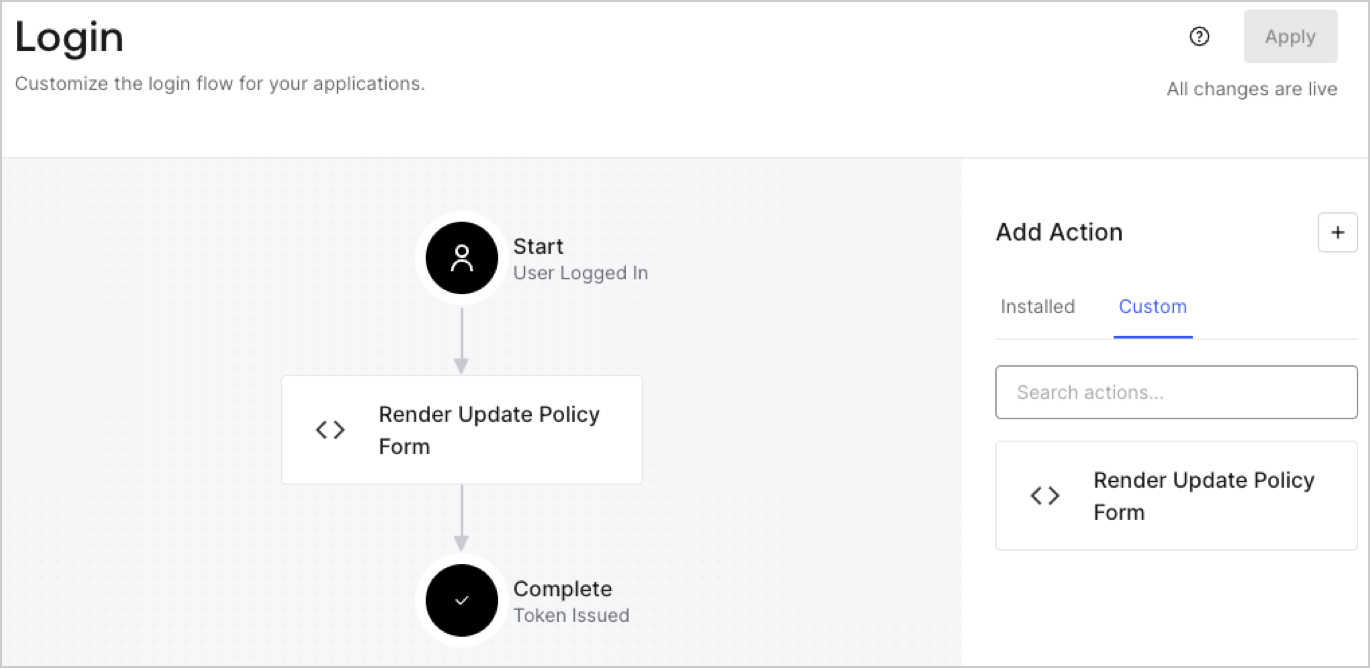
## Create a Post Login Action

Create a post-login Action to render your form by following these steps:

1. Navigate to **Auth0 Dashboard > Actions > Flows > Login.**
2. Select the **+** icon and Select **Build from scratch**:

   * **Name**: Enter `Render Update Policy Form`.
   * **Trigger**: Select `Login / Post Login`.
   * **Runtime**: Select the recommended version.
3. Select **Create**.

To configure the post-login Action:

1. Delete the existing code from the Code editor.
2. Paste the form render code into the Code editor.
3. Edit the code to define the conditional logic that will render the form.

   ```javascript lines theme={null}
   /**
   * @param {Event} event - Details about the user and the context in which they are logging in.
   * @param {PostLoginAPI} api - Interface whose methods can be used to change the behavior of the login.
   */
   exports.onExecutePostLogin = async (event, api) => {
     const FORM_ID = 'REPLACE_WITH_YOUR_FORM_ID';

     if (event.user.app_metadata.privacy_policies !== true) {
       api.prompt.render(FORM_ID);
     }
   }

   exports.onContinuePostLogin = async (event, api) => { }
   ```

   <Callout icon="file-lines" color="#0EA5E9" iconType="regular">
     The example code above will render the form when a user is missing the app metadata `privacy_policies` property.
   </Callout>
4. Select **Deploy.**
5. Drag and Drop the **Render Update Policy Form** Action to the **Login** flow.
   <Frame>
     <img src="https://mintcdn.com/docs-staging-feat-init-gt-translations/lXCEOVvU32b-YQad/docs/images/cdy7uua7fh8z/5TOwDgevZsBqd7yZynUYWU/41ca909dc3007aed4f40ff794a05efa5/postlogin.png?fit=max&auto=format&n=lXCEOVvU32b-YQad&q=85&s=a069e9203f1e7cd012c1bf8846775f1f" alt="Dashboard > Forms > Use Case > Render update policy form login action" data-og-width="1370" width="1370" data-og-height="668" height="668" data-path="docs/images/cdy7uua7fh8z/5TOwDgevZsBqd7yZynUYWU/41ca909dc3007aed4f40ff794a05efa5/postlogin.png" data-optimize="true" data-opv="3" srcset="https://mintcdn.com/docs-staging-feat-init-gt-translations/lXCEOVvU32b-YQad/docs/images/cdy7uua7fh8z/5TOwDgevZsBqd7yZynUYWU/41ca909dc3007aed4f40ff794a05efa5/postlogin.png?w=280&fit=max&auto=format&n=lXCEOVvU32b-YQad&q=85&s=40bbe7430cf72b4007cb0adccf91be09 280w, https://mintcdn.com/docs-staging-feat-init-gt-translations/lXCEOVvU32b-YQad/docs/images/cdy7uua7fh8z/5TOwDgevZsBqd7yZynUYWU/41ca909dc3007aed4f40ff794a05efa5/postlogin.png?w=560&fit=max&auto=format&n=lXCEOVvU32b-YQad&q=85&s=0d06ce6b7d703542122ac873154b5617 560w, https://mintcdn.com/docs-staging-feat-init-gt-translations/lXCEOVvU32b-YQad/docs/images/cdy7uua7fh8z/5TOwDgevZsBqd7yZynUYWU/41ca909dc3007aed4f40ff794a05efa5/postlogin.png?w=840&fit=max&auto=format&n=lXCEOVvU32b-YQad&q=85&s=c600ed8821f1b49a81bbad5c96a3bc57 840w, https://mintcdn.com/docs-staging-feat-init-gt-translations/lXCEOVvU32b-YQad/docs/images/cdy7uua7fh8z/5TOwDgevZsBqd7yZynUYWU/41ca909dc3007aed4f40ff794a05efa5/postlogin.png?w=1100&fit=max&auto=format&n=lXCEOVvU32b-YQad&q=85&s=67905a991172f002c6c7d930c931c465 1100w, https://mintcdn.com/docs-staging-feat-init-gt-translations/lXCEOVvU32b-YQad/docs/images/cdy7uua7fh8z/5TOwDgevZsBqd7yZynUYWU/41ca909dc3007aed4f40ff794a05efa5/postlogin.png?w=1650&fit=max&auto=format&n=lXCEOVvU32b-YQad&q=85&s=e3aa9e1cf8852f02eb3f336dec82d4db 1650w, https://mintcdn.com/docs-staging-feat-init-gt-translations/lXCEOVvU32b-YQad/docs/images/cdy7uua7fh8z/5TOwDgevZsBqd7yZynUYWU/41ca909dc3007aed4f40ff794a05efa5/postlogin.png?w=2500&fit=max&auto=format&n=lXCEOVvU32b-YQad&q=85&s=25c51b50cbc7ccca4314cfb9fa73a63d 2500w" />
   </Frame>
6. Select **Apply.**

### Test implementation

Test the implementation by following these steps:

1. Log in with an existing user whose app`_metadata` attribute `privacy_policies` does not have a value.
2. The post-login Action in the Login flow will render the form and prompt for acceptance.
3. Select **Auth0 Dashboard > User Management > Users,** locate the user and verify that the `app_metadata` attribute `privacy_policies` contains a `true` value and a timestamp.
